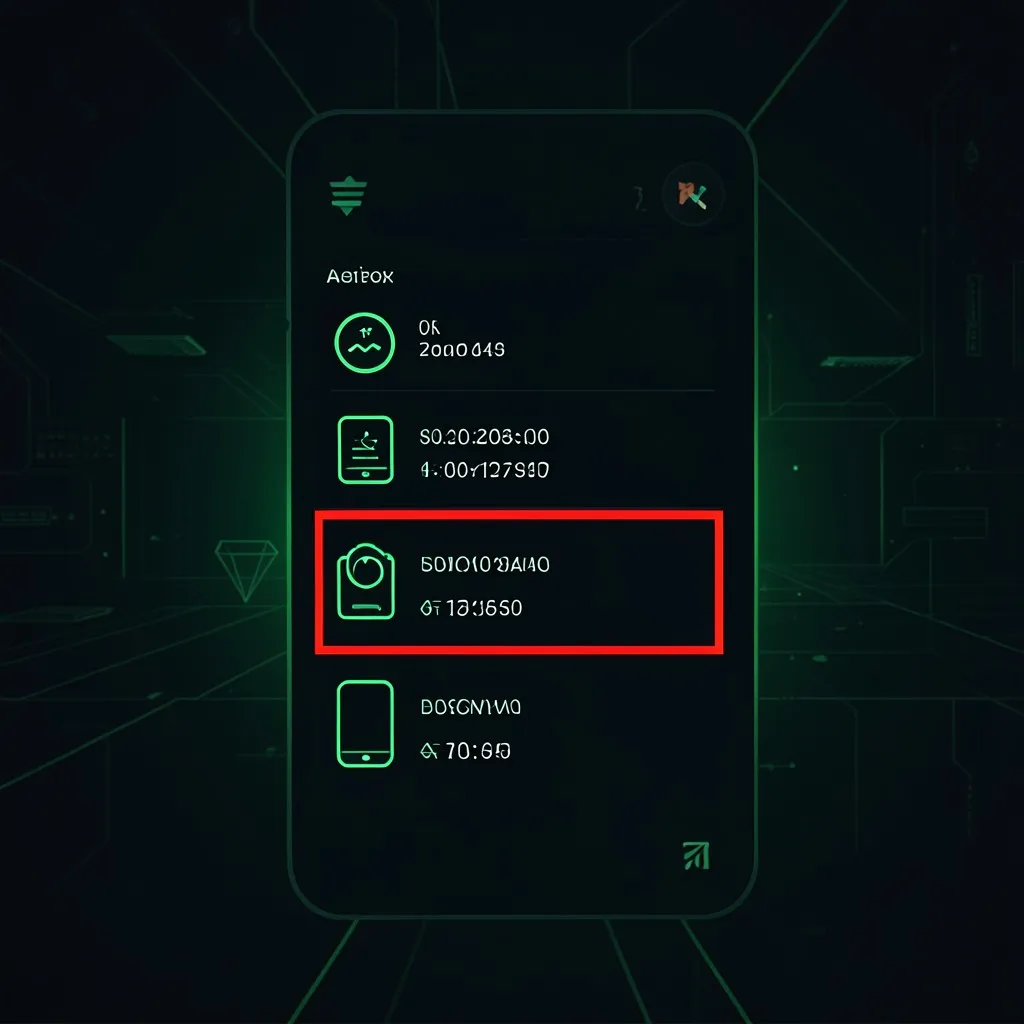
To check your Facebook login history, go to Settings > Accounts Center > Password and security > Where you’re logged in. This shows every device and location currently signed into your Facebook account, so you can spot and remove anyone who should not be there.
Why does checking your Facebook login history matter?
Facebook holds years of your personal data — private messages, photos, friend lists, and often your phone number and email. If someone gets into your Facebook, they do not just see your profile. They can impersonate you, message your friends asking for money, access any apps you logged into with Facebook, and harvest your personal information for identity theft.
More than 500 million Facebook records were exposed in a single breach alone. Combined with the billions of credentials leaked from other services, there is a real chance your Facebook login details are sitting in a stolen database somewhere. You can check if your email appeared in a breach to find out.
The good news is that Facebook makes it straightforward to see exactly who is logged into your account and kick them out. Here is how to do it.
How do you check Facebook login history on a computer?
Follow these steps on a desktop or laptop browser:
- Open Facebook and click your profile picture in the top right corner
- Click “Settings & privacy”
- Click “Settings”
- In the left sidebar, click “Accounts Center” (this is Meta’s unified settings hub)
- Click “Password and security”
- Click “Where you’re logged in”
You will see a list of every active session on your account. Each entry shows:
- Device type — phone model, computer browser, or tablet
- Location — city and country based on the IP address
- When — the date and time of the most recent activity on that session
Look through every entry carefully. If you see a device you do not own or a location you have never been to, that session needs to go.
How do you check login history on the Facebook mobile app?
The process is nearly identical on your phone:
- Open the Facebook app
- Tap your profile picture (bottom right on iPhone, top right on Android)
- Tap “Settings & privacy”
- Tap “Settings”
- Tap “Accounts Center”
- Tap “Password and security”
- Tap “Where you’re logged in”
You will see the same list of active sessions. Tap on any session to see more details or to log it out.
How do you remove unknown devices and end suspicious sessions?
Once you find a session that looks suspicious:
- Tap or click on the suspicious session from the “Where you’re logged in” list
- Select “Log out”
- That session is immediately ended — whoever was using it is locked out
If you see multiple unfamiliar sessions, or if you are unsure which ones are yours, use the nuclear option:
- At the bottom of the “Where you’re logged in” page, look for “Log out of all sessions”
- Click or tap it
- Every device — including yours — is logged out
- Log back in on your own device with a new password
This is the safest approach if you suspect your account is compromised. It guarantees that no attacker retains access.
What does suspicious activity look like on Facebook?
Here are the red flags to watch for:
- Sessions from cities or countries you have never visited — this is the clearest sign of unauthorized access
- Devices you do not own — an Android phone when you only use iPhone, or a Windows PC when you use a Mac
- Multiple active sessions you cannot explain — if you only use Facebook on your phone and laptop but see five active sessions, something is wrong
- Sessions that were active while you were asleep — check the timestamps carefully
- Facebook app sessions from unknown sources — third-party apps that have access to your account through Facebook Login
If your email has been part of a data breach, attackers often try your leaked credentials on Facebook within hours. Check your email against known breaches to see if you are at risk.
What should you do if you find unauthorized access?
Take these steps in order. Do not skip any.
Step 1 — Log out all sessions. Go to Where you’re logged in and log out everything. This immediately cuts off the attacker.
Step 2 — Change your password. Go to Accounts Center > Password and security > Change password. Choose a password that is at least 16 characters, completely random, and not used on any other site. Never reuse a password that was in a breach. A password manager makes this easy. Read our guide on how to create a strong password for more details.
Step 3 — Turn on two-factor authentication. Go to Accounts Center > Password and security > Two-factor authentication. Choose an authenticator app (Google Authenticator or Authy) over SMS when possible. This means even if someone gets your password again, they cannot log in without your phone. Learn more in what is two-factor authentication.
Step 4 — Enable login alerts. Go to Accounts Center > Password and security > Login alerts. Turn on notifications for unrecognised logins. Facebook will alert you by email or push notification whenever a new device accesses your account.
Step 5 — Review your connected apps. Go to Settings > Apps and websites. Remove any app you do not recognise or no longer use. Each connected app is a potential back door into your account.
Step 6 — Check your account for damage. Look through your recent activity:
- Check your Messages for anything you did not send — attackers often message friends pretending to be you
- Check your Posts and Timeline for content you did not create
- Check your Email address and Phone number under Accounts Center > Personal details to make sure the attacker did not change your recovery options
- Check Payment settings if you have a card saved on Facebook
How can you prevent unauthorized Facebook access in the future?
Three things make your Facebook account significantly harder to break into:
Use a unique password. If your Facebook password is the same as any other account, change it now. A breach on any other site gives attackers your Facebook password too. This is called credential stuffing and it is one of the most common attack methods.
Keep two-factor authentication on. This single setting stops the majority of account takeovers, even when the attacker has your correct password.
Check regularly. Make it a monthly habit to review your active sessions and remove anything you do not recognise. Also scan your email for new breaches regularly. The faster you know about a breach, the faster you can change your password.
Frequently asked questions
Can someone be logged into my Facebook without me knowing?
Yes. If your password was leaked in a data breach, an attacker can log into your Facebook account silently. They can read your messages, post as you, or use your account to scam your friends — all without you receiving a notification. Checking your active sessions regularly is the only way to catch this early.
How do I log someone out of my Facebook remotely?
Go to Settings > Accounts Center > Password and security > Where you’re logged in. Find the session you want to end, tap or click on it, and select “Log out.” This immediately ends that session. If you see multiple suspicious sessions, you can also choose “Log out of all sessions” to remove every device at once.
Does Facebook notify me when someone logs in from a new device?
Facebook can send you alerts for unrecognised logins, but this feature must be turned on. Go to Settings > Accounts Center > Password and security > Login alerts, and enable notifications. You can choose to receive alerts via Facebook notification, email, or both. This is one of the most important settings to enable.
What if I cannot access my Facebook account because someone changed the password?
Go to facebook.com/login and click “Forgotten password.” Facebook will try to verify your identity using your email address, phone number, or trusted contacts. If the attacker changed your recovery options too, you can use Facebook’s identity verification process where you upload a photo ID. Act fast — the longer an attacker has control, the harder recovery becomes.