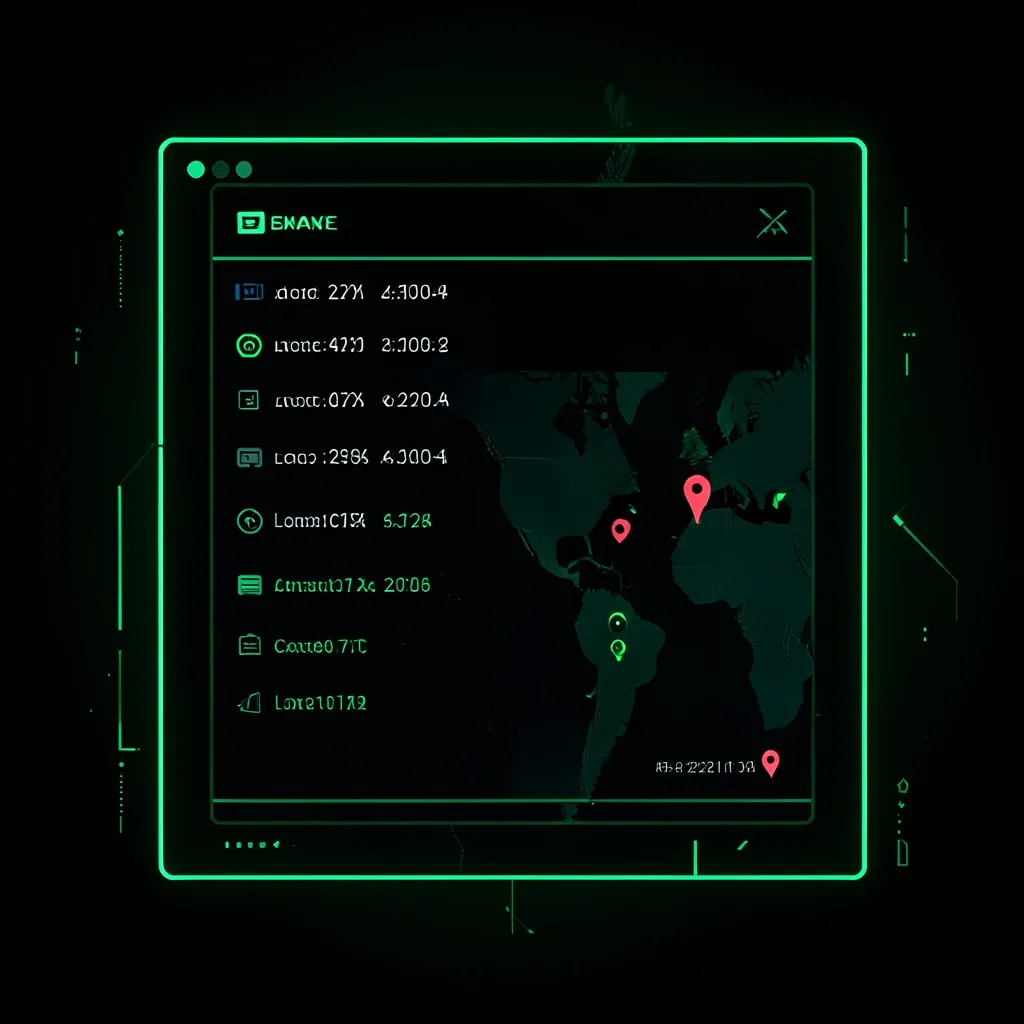
You can check your Gmail login history in under 30 seconds. Open Gmail on your computer, scroll to the very bottom right corner, and click “Details” under “Last account activity.” This shows you every device, location, and IP address that recently accessed your account — so you can spot anyone who should not be there.
Why should you check your Gmail login history?
Your Gmail account is the master key to your entire online life. It is connected to your password resets, your bank notifications, your social media accounts, and your personal conversations. If someone gains access to your Gmail, they can use it to break into almost everything else.
The problem is that unauthorized access does not always look obvious. An attacker might log in once, set up a forwarding rule to copy your emails, and never log in again. You would never notice unless you checked your login history.
Over 12 billion account records have been exposed in data breaches as of 2026. If your email address appeared in even one of those breaches, someone may already have your password. You can check if your email was exposed in a breach right now to find out.
How do you check Gmail login history on desktop?
This is the fastest method. It takes about 30 seconds.
- Open Gmail in your web browser and log into your account
- Scroll all the way to the bottom of your inbox
- In the bottom right corner, look for the text “Last account activity” with a timestamp
- Click the word “Details” right below that timestamp
- A popup window opens showing your recent login sessions
This popup shows you:
- Access type — whether the session was from a browser, mobile app, or third-party app
- Location (IP address) — the city and country the login came from
- Date and time — exactly when the session started
Look through every entry. If you see a location you have never been to or a device you do not own, that is a red flag.
You can also click “Sign out all other web sessions” at the top of this popup to immediately log out every device except the one you are using right now. Do this if anything looks suspicious.
How do you check login history from your Google Account security page?
The Gmail popup only shows recent sessions. For a fuller picture, use the Google Account security dashboard.
- Go to myaccount.google.com
- Click “Security” in the left sidebar
- Scroll down to “Your devices” — this shows every device currently signed into your account
- Below that, find “Recent security activity” — this shows sign-ins, password changes, and recovery email updates from the past 28 days
Under “Your devices,” click on any device to see more details — including the last time it was used, the location, and the browser. If you see a device you do not recognise, click “Don’t recognize this device?” and follow the prompts to secure your account.
Under “Recent security activity,” look for entries like:
- “New sign-in on [device]” from an unfamiliar location
- “Password changed” when you did not change it
- “Recovery email changed” when you did not make that change
- “2-step verification turned off” when you did not do that
Any of these that you did not initiate is a serious warning sign.
What does suspicious activity look like?
Not everything unfamiliar is an attack, but certain patterns should raise your alarm:
- Logins from countries you have never visited — especially if they happened while you were asleep or at work
- Multiple logins from different locations in a short time — this suggests your credentials are being tested by automated tools
- Unfamiliar devices — a Windows desktop when you only use a Mac, or an Android phone when you only own an iPhone
- Third-party app access you did not authorise — apps or services that have permission to read your email
- Logins at unusual hours — consistent access at 3am in your timezone when you are asleep
If your email was exposed in a data breach, attackers often use automated tools called credential stuffing bots to test your email and password across hundreds of sites within hours. Check if your email has been compromised to see exactly which breaches included your data.
What should you do if you find unauthorized access?
Act fast. Here is the exact order:
Step 1 — Sign out everywhere. Go to the Gmail “Last account activity” popup and click “Sign out all other web sessions.” This immediately locks out anyone currently in your account.
Step 2 — Change your password. Go to Google Account > Security > Signing in to Google > Password. Create a new password that is at least 16 characters long, completely random, and not used on any other site. A password manager can generate and store this for you. For more details, read how to create a strong password.
Step 3 — Enable two-factor authentication. Go to Google Account > Security > 2-Step Verification. Use an authenticator app like Google Authenticator or Authy rather than SMS. This means that even if someone gets your password again, they cannot log in without your phone. Learn more in our guide on what is two-factor authentication.
Step 4 — Check your Gmail settings. Attackers often make silent changes that survive a password reset:
- Go to Gmail > Settings (gear icon) > See all settings > Forwarding and POP/IMAP. Make sure no forwarding address is set up that you did not add
- Go to Filters and Blocked Addresses. Delete any filters you did not create — attackers use filters to auto-delete security alerts
- Check your Sent folder for messages you did not send
- Check Google Account > Security > Third-party apps with account access and remove anything you do not recognise
Step 5 — Review your recovery options. Make sure your recovery phone number and recovery email address are still yours. Attackers change these to lock you out permanently.
How often should you check your login history?
Make it a monthly habit at minimum. Set a calendar reminder to check your Gmail login history and your Google Account security page on the first of every month.
Better yet, turn on Google’s built-in security alerts. Go to Google Account > Security and make sure alerts for unusual activity are enabled. Google will send you a notification whenever a new device signs into your account.
You should also scan your email regularly to check for new breaches. The sooner you find out your credentials were exposed, the faster you can change your password before anyone uses it.
Frequently asked questions
Can someone log into my Gmail without me knowing?
Yes. If your password was exposed in a data breach and you do not have two-factor authentication enabled, someone can log into your Gmail silently. They may read your emails, set up forwarding rules, or use your account to reset passwords on other sites — all without triggering an obvious alert. Checking your login history regularly is the best way to catch this.
How far back does Gmail login history go?
The “Last account activity” panel at the bottom of Gmail shows roughly the last 10 sessions. For a longer history, go to Google Account > Security > Recent security activity, which shows significant events from the past 28 days including sign-ins, password changes, and recovery email updates.
What should I do if I see a login from a country I have never visited?
Change your Google password immediately. Then enable two-factor authentication if it is not already on. Go to Google Account > Security > Your devices and remove any device you do not recognise. Finally, check your Gmail forwarding rules and filters to make sure no one set up silent email forwarding.
Does using a VPN make my own logins look suspicious?
Yes. A VPN routes your traffic through servers in other cities or countries, so your login history may show locations you have never physically visited. If you use a VPN regularly, make a note of which server locations you typically connect through so you can tell the difference between your own VPN logins and genuinely suspicious ones.